Docker
What is Docker?
Platform for developing, shipping and running applications.
Infrastructure as application / code.
First version: 2013.
Company: originally dotCloud (2010), later named Docker.
Established Open Container Initiative.
As a software:
Docker Enterprise Edition.
There is an increasing number of alternative container technologies and providers. Many of them are actually based on software components originally from the Docker stack, and they normally try to address some specific use cases or weak points. As an example, Singularity, that we introduce later in this course, is focused on HPC environments. Another case, Podman, keeps a high functional compatibility with Docker but with a different focus on technology (not keeping a daemon) and permissions.
Docker components
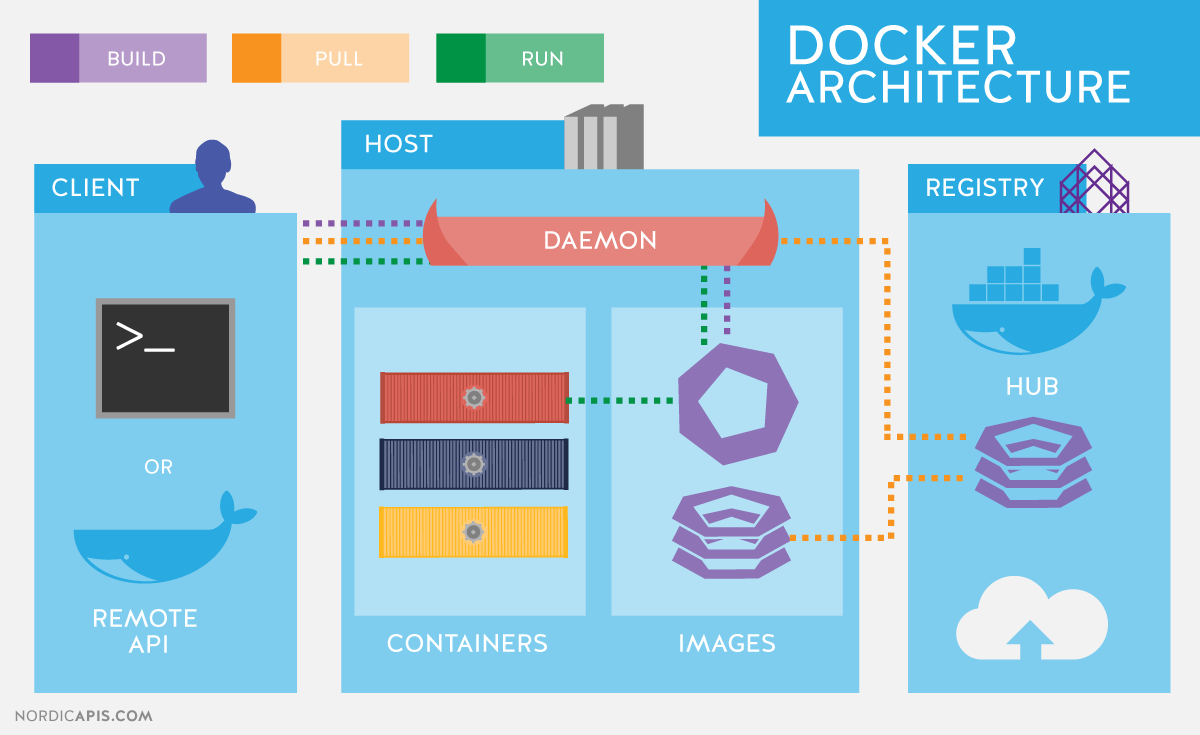
Read-only templates.
Containers are run from them.
Images are not run.
Images have several layers.
Images versus containers
Image: A set of layers, read-only templates, inert.
An instance of an image is called a container.
When you start an image, you have a running container of this image. You can have many running containers of the same image.
“The image is the recipe, the container is the cake; you can make as many cakes as you like with a given recipe.”
Docker vocabulary
docker
Usage:  docker [OPTIONS] COMMAND

A self-sufficient runtime for containers

Common Commands:
  run         Create and run a new container from an image
  exec        Execute a command in a running container
  ps          List containers
  build       Build an image from a Dockerfile
  bake        Build from a file
  pull        Download an image from a registry
  push        Upload an image to a registry
  images      List images
  login       Authenticate to a registry
  logout      Log out from a registry
  search      Search Docker Hub for images
  version     Show the Docker version information
  info        Display system-wide information

Management Commands:
  builder     Manage builds
  buildx*     Docker Buildx
  compose*    Docker Compose
  container   Manage containers
  context     Manage contexts
  image       Manage images
  manifest    Manage Docker image manifests and manifest lists
  model*      Docker Model Runner
  network     Manage networks
  plugin      Manage plugins
  system      Manage Docker
  volume      Manage volumes
...
Get help:
docker run --help
Usage:  docker run [OPTIONS] IMAGE [COMMAND] [ARG...]

Create and run a new container from an image

Aliases:
  docker container run, docker run

Options:
      --add-host list                    Add a custom host-to-IP mapping (host:ip)
      --annotation map                   Add an annotation to the container (passed through to the OCI runtime) (default map[])
  -a, --attach list                      Attach to STDIN, STDOUT or STDERR
      --blkio-weight uint16              Block IO (relative weight), between 10 and 1000, or 0 to disable (default 0)
      --blkio-weight-device list         Block IO weight (relative device weight) (default [])
      --cap-add list                     Add Linux capabilities
      --cap-drop list                    Drop Linux capabilities
      --cgroup-parent string             Optional parent cgroup for the container
      --cgroupns string                  Cgroup namespace to use (host|private)
                                         'host':    Run the container in the Docker host's cgroup namespace
                                         'private': Run the container in its own private cgroup namespace
                                         '':        Use the cgroup namespace as configured by the
                                                    default-cgroupns-mode option on the daemon (default)
      --cidfile string                   Write the container ID to the file
      --cpu-period int                   Limit CPU CFS (Completely Fair Scheduler) period
      --cpu-quota int                    Limit CPU CFS (Completely Fair Scheduler) quota
      --cpu-rt-period int                Limit CPU real-time period in microseconds
      --cpu-rt-runtime int               Limit CPU real-time runtime in microseconds
  -c, --cpu-shares int                   CPU shares (relative weight)
      --cpus decimal                     Number of CPUs
      --cpuset-cpus string               CPUs in which to
...
Using existing images
Explore Docker hub
Images can be stored locally or shared in a registry.
Docker hub is the main public registry for Docker images.
Let’s search the keyword ubuntu:
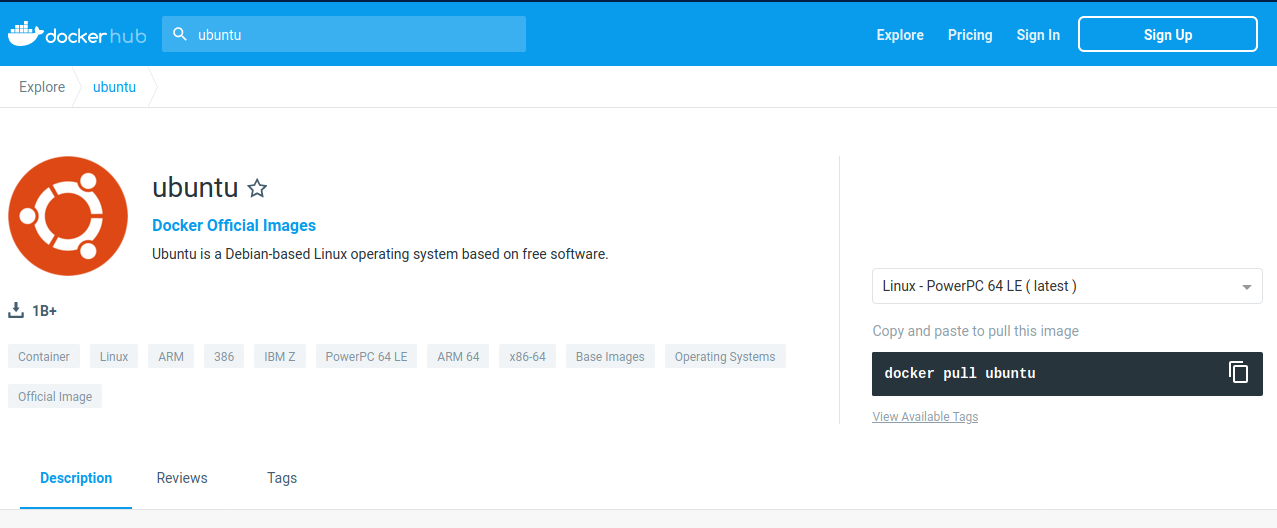
docker pull: import image
get latest image / latest release
docker pull ubuntu
Using default tag: latest
latest: Pulling from library/ubuntu
817807f3c64e: Pull complete
Digest: sha256:186072bba1b2f436cbb91ef2567abca677337cfc786c86e107d25b7072feef0c
Status: Downloaded newer image for ubuntu:latest
docker.io/library/ubuntu:latest
choose the version of Ubuntu you are fetching: check the different tags
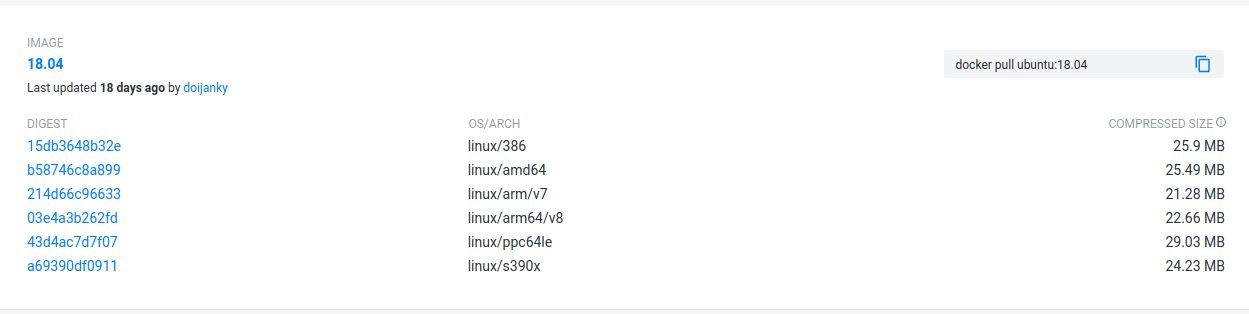
docker pull ubuntu:22.04
docker images: list images
docker images
IMAGE           ID             DISK USAGE   CONTENT SIZE   EXTRA
ubuntu:22.04    2a8380840c2f       77.9MB             0B
ubuntu:latest   f794f40ddfff       78.1MB             0B
Recently Docker changed the output format of this subcommand, to retrieve the original most detailed one output, you can do:
docker images --no-trunc
REPOSITORY   TAG       IMAGE ID                                                                  CREATED       SIZE
ubuntu       22.04     sha256:2a8380840c2fad0be3c1132c6950a8989b560f572b2a17bc7907b5288ee71780   3 weeks ago   77.9MB
ubuntu       latest    sha256:f794f40ddfff5af8ef1b39ee29eab3b5400ea70b9ebefd286812dbbe0054ad6b   3 weeks ago   78.1MB
Each image has a unique IMAGE ID.
docker run: run image, i.e. start a container
Now we want to use what is inside the image.
docker run creates a fresh container (active instance of the image) from a Docker (static) image, and runs it.
The format is:
docker run image:tag command
docker run ubuntu:22.04 /bin/ls
bin
boot
dev
etc
home
lib
lib32
lib64
libx32
media
mnt
opt
proc
root
run
sbin
srv
sys
tmp
usr
var
Now execute ls in your current working directory: is the result the same?
You can execute any program/command that is stored inside the image:
docker run ubuntu:22.04 /bin/whoami
docker run ubuntu:22.04 cat /etc/issue
You can either execute programs in the image from the command line (see above) or execute a container interactively, i.e. “enter” the container.
With --name you can provide a name to the container.
docker run -it ubuntu:22.04 /bin/bash

docker run --name myubuntu -it ubuntu:22.04 /bin/bash
You can run containers in detached mode (kept in the background):
docker run --detach ubuntu:22.04 sleep infinity

docker run --name myubuntu2 --detach ubuntu:22.04 sleep infinity
Note
Instead of sleep infinity, you can use other workarounds, such as tail -f /dev/null or also using docker -it option.
docker ps: check containers status
List running containers:
docker ps
List all containers (whether they are running or not):
docker ps -a
We can avoid a bit of mess by using --rm tag when using docker run, so the container is automatically removed, so we don’t accumulate stopped containers.
docker run --rm ubuntu:22.04 /bin/ls
docker exec: execute process in running container
docker exec myubuntu2 uname -a
Interactively
docker exec -it myubuntu2 /bin/bash
docker stop, start, restart: actions on container
Stop a running container:
docker stop myubuntu2

docker ps -a
Start a stopped container (does NOT create a new one):
docker start myubuntu2

docker ps -a
Restart a running container:
docker restart myubuntu2

docker ps -a
docker rm, docker rmi: clean up!
docker rm myubuntu
docker rm -f myubuntu
docker rmi ubuntu:22.04
Volumes
Docker containers are fully isolated. It is necessary to mount volumes in order to handle input/output files.
Syntax: --volume / -v host_path:container_path
mkdir data
# We can also copy the FASTQ we used in data
docker run --volume $(pwd)/data:/scratch --name fastqc_container biocontainers/fastqc:v0.11.9_cv7 fastqc /scratch/B7_input_s_chr19.fastq.gz
Volume exercises
Copy the 2 FASTQ files from available datasets in GitHub repository and place them in mounted directory
Run
fastqcinteractively (inside container):`fastqc /scratch/*.gz`Run
fastqcnon-interactively (outside the container)
See also
Besides mounted volumes, Docker also supports named volumes and anonymous volumes that are not tied to a specific host path. These volumes are managed by Docker and stored in a dedicated area on the host filesystem (typically under /var/lib/docker/volumes/). Named volumes are useful for persisting data that needs to survive container removal without requiring you to manage the host path directly, while anonymous volumes are created automatically and are typically used for temporary data or caching.
You can create and manage them using commands like docker volume create, docker volume ls, and docker volume rm.
Running Docker as a regular user
It is possible to run certain containers with a specific user, appending `run --user`.
A convenient command would be:
docker run --user $(id -u):$(id -g) --volume $(pwd)/data:/scratch --name user_test biocontainers/fastqc:v0.11.9_cv7 touch /scratch/userfile
Ports
The same as with volumes, but with ports, to access Internet services.
Syntax: --publish / -p host_port:container_port
We take advantage to present also docker inspect <container> and docker logs <container>
docker run --detach --name webserver nginx
curl localhost:80
docker exec webserver curl localhost:80
docker rm -f webserver
docker run --detach --name webserver --publish 80:80 nginx
curl localhost:80
docker rm -f webserver
docker run --detach --name webserver -p 8080:80 nginx
curl localhost:80
curl localhost:8080
docker exec webserver curl localhost:80
docker exec webserver curl localhost:8080
We inspect and retrieve the logs of that container:
# We get details of the container
docker inspect webserver | less

# We see the logs of the container. Normally only make sense for background services
docker logs webserver
# We can follow live the changes. Similar to what we do with tail -f
docker logs -f webserver

docker rm -f webserver